
Members VIP turns your site into a subscription service: you choose which movies and series are exclusive, create your plans (weekly, monthly, yearly…) and your visitors pay by Yape, bank transfer, PayPal, crypto or whatever method you use. They upload the receipt, you approve it with one click and their VIP turns on right away. VIP members also browse without ads.
In this guide we set it up from start to finish on a sample site, CinePlus, and you will see exactly what your visitors see. The screenshots show the panel in Spanish; the labels are the same in your language.

Before you start #
- MovieMaster 0.9.53 or later (Panel → System → Updates).
- The free Members plugin, which gives your visitors sign-up, login and «My account». Members VIP works on top of it.
- An active license: Members VIP is a paid plugin, bought once for your domain.
1. Install Members and Members VIP #
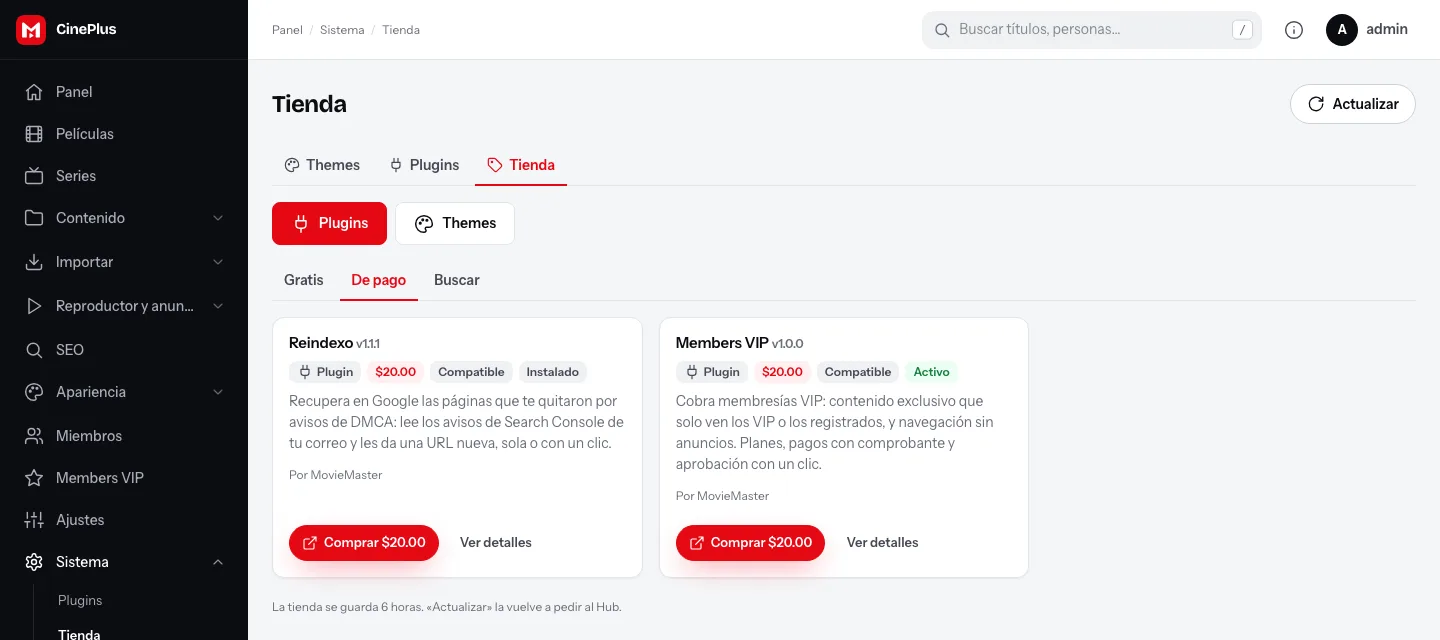
In the panel go to System → Store:
- On the Free tab, install and activate Members (skip this if it is already active).
- On the Paid tab, click Buy on Members VIP. Once you have paid, go back to the store, click Refresh and then Install.
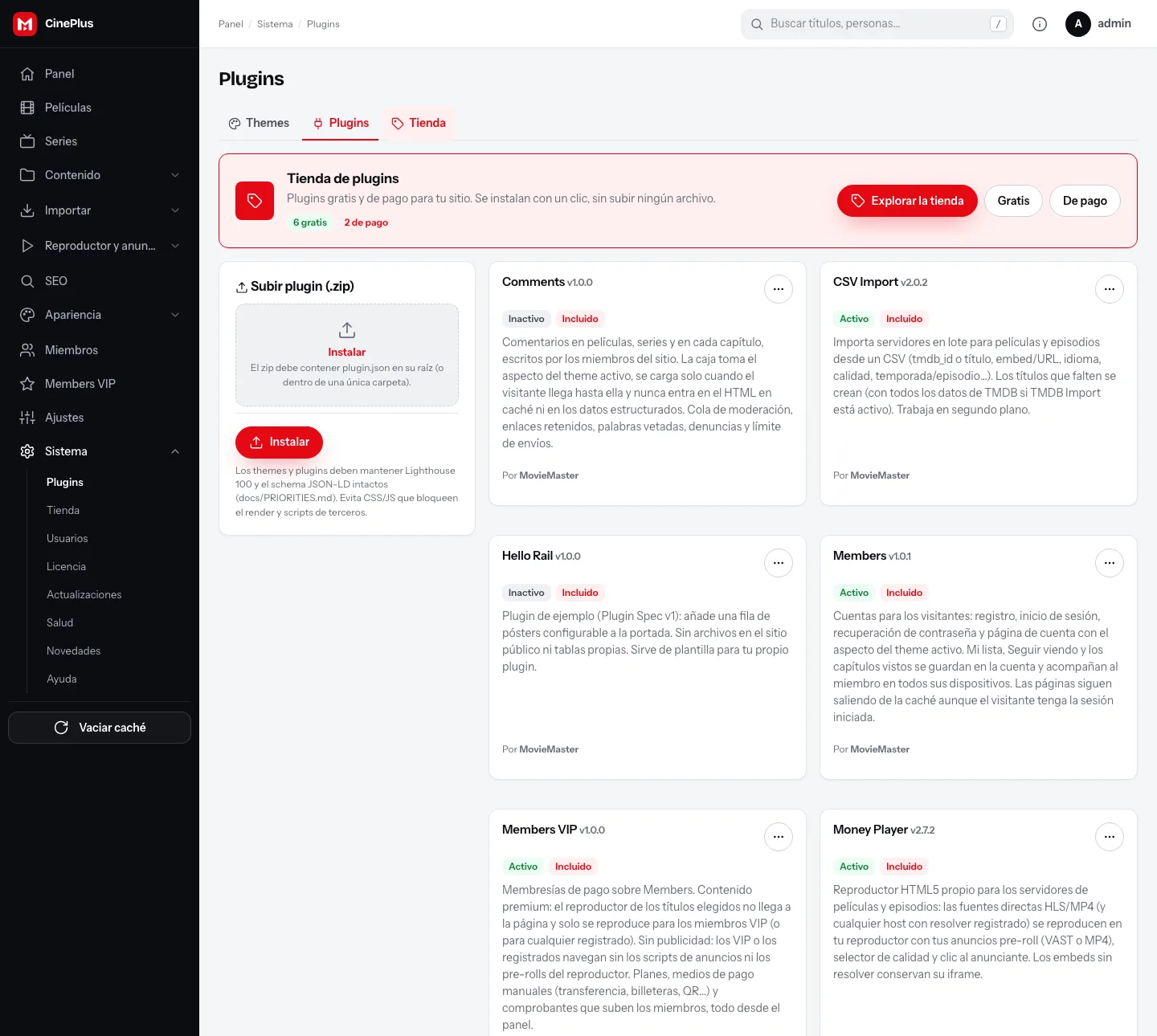
In System → Plugins check that both show as Active. A new Members VIP entry appears in the side menu; everything is managed from there.
2. Choose the mode #
Open Members VIP → Settings and texts. First decide what a VIP member gets:
| Mode | Who can play | What it is for |
|---|---|---|
| Everything premium | VIP only | A 100 % paid site. Everyone else sees the notice on every title. |
| Only some titles premium | Everyone, except on the titles you mark | The most common: the catalog stays free and the big releases are for VIP. |
| Free for everyone, VIP without ads | Everyone | Nothing is blocked; VIP pay to browse without ads. |
| Registered only | Anyone with a (free) account | Good for collecting sign-ups. VIP also browse without ads. |
| Custom | Whatever you combine | Choose separately who can play, what is blocked and who goes ad-free. |
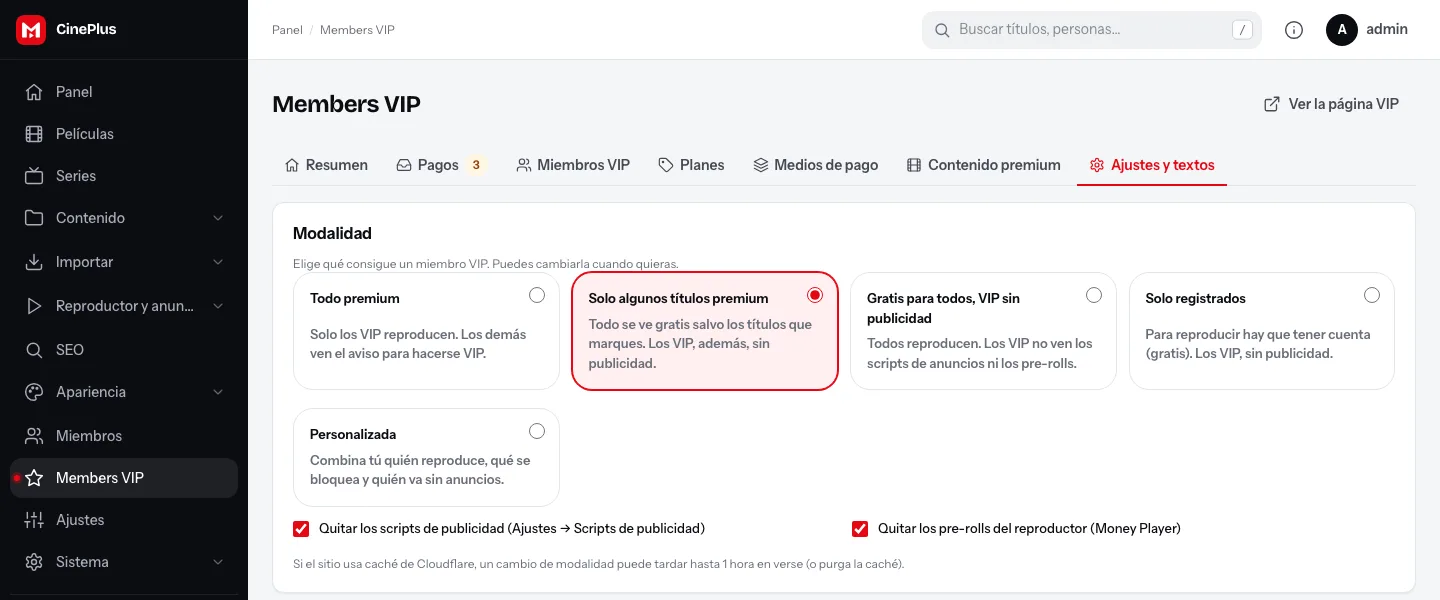
Below there are two checkboxes for VIP: Remove ad scripts (the ones in Settings → Ad scripts) and Remove player pre-rolls (Money Player). Leave them checked: browsing without ads is what people value most about VIP.
3. Create your plans #
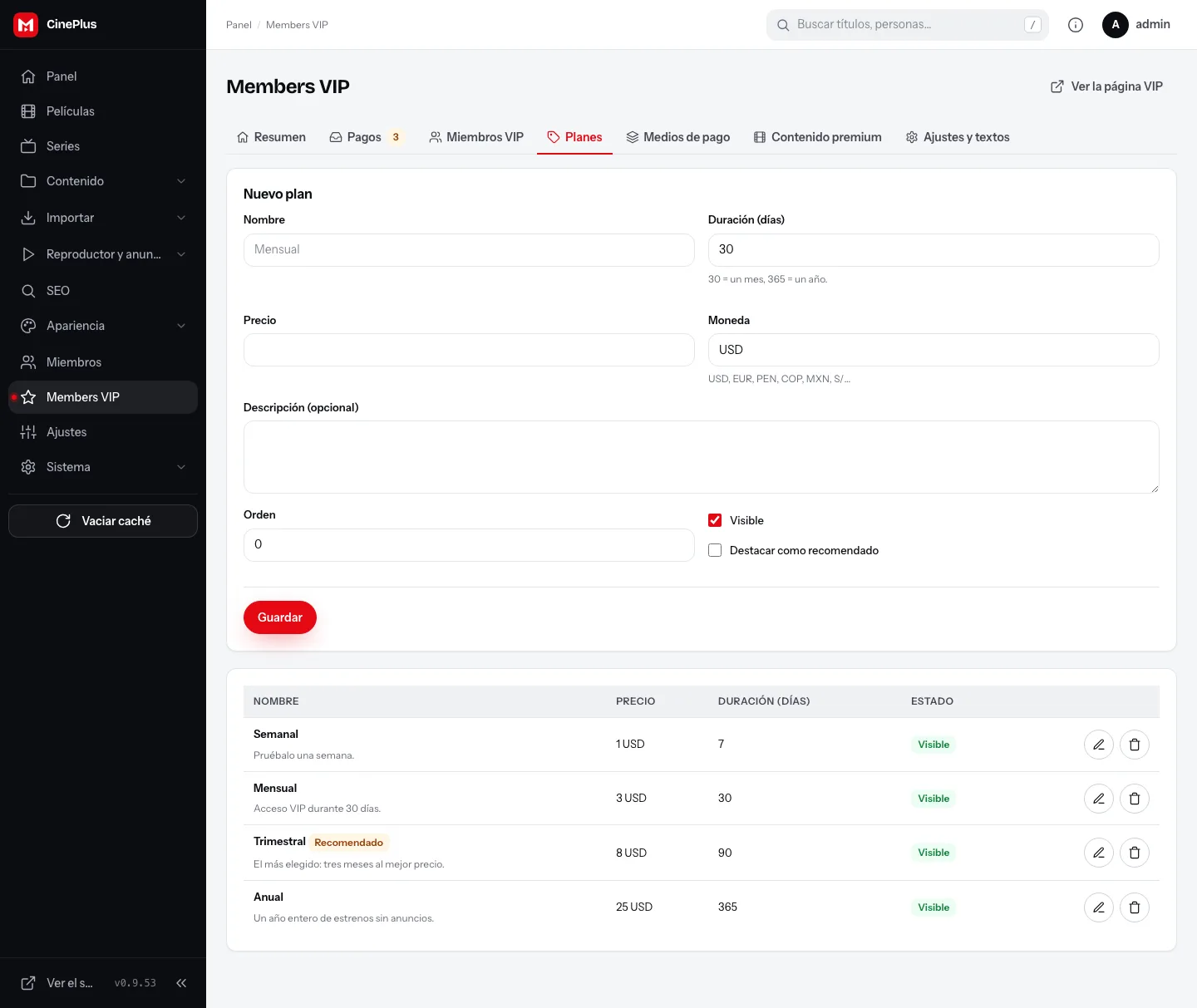
On the Plans tab fill in Name, Price, Currency (USD, EUR, PEN, COP, MXN…) and Duration (days): 30 is a month and 365 a year. The description is optional and shows under the price.
Tick Feature as recommended on the plan you most want to sell: it stands out in red with the «Recommended» label. Order sets each plan's position, and Visible hides one without deleting it.
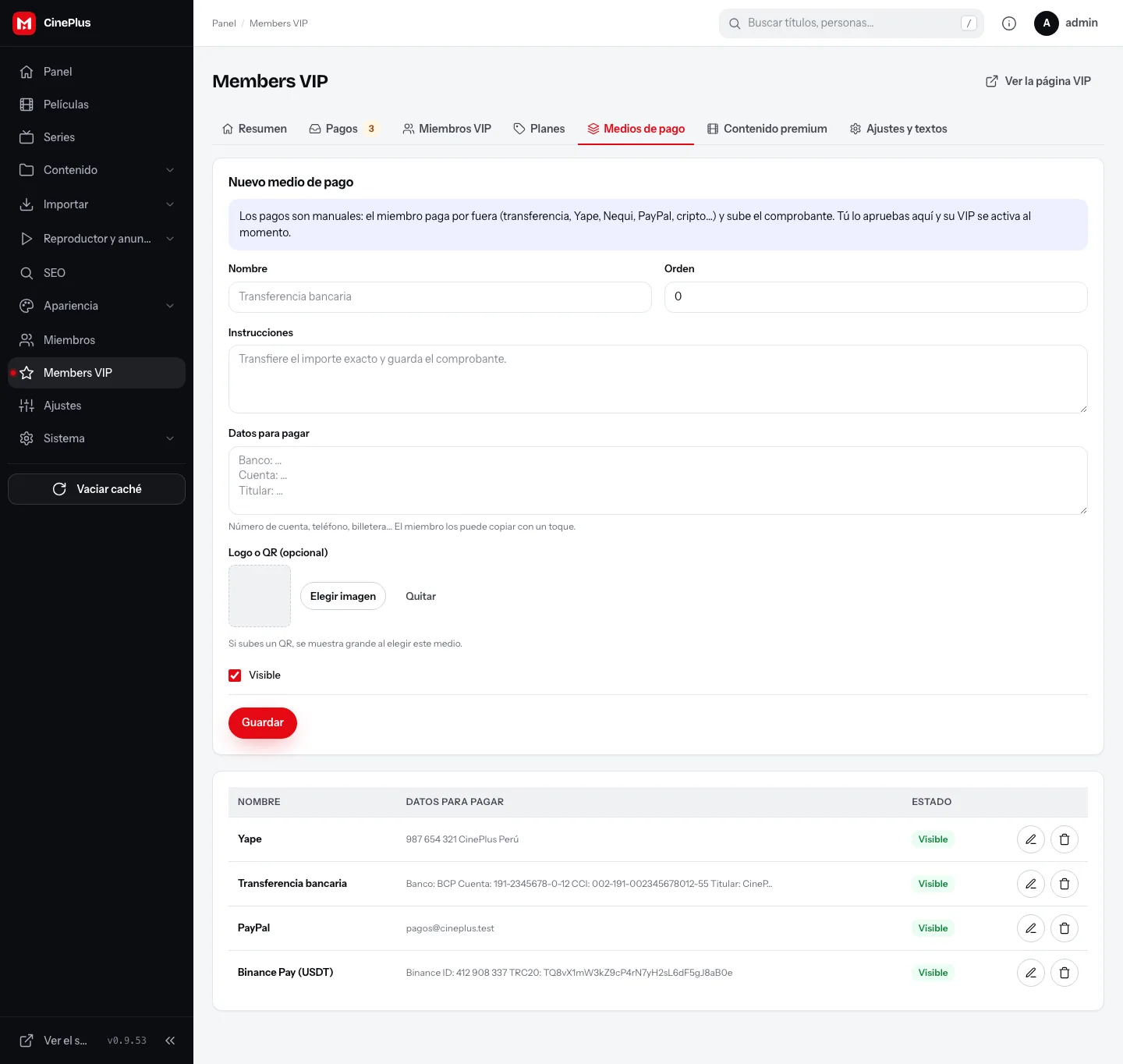
4. Add your payment methods #
Payments are manual: the member pays you outside the site (Yape, Nequi, bank transfer, PayPal, Binance…) and uploads the receipt. No gateway fees and nothing to connect.
In Payment methods create one per way of getting paid:
- Name: what the member sees («Yape», «Bank transfer»…).
- Instructions: one sentence on how to pay.
- Payment details: number, account, IBAN/CCI, PayPal email or wallet. Shown as is, and the member copies them with one tap.
- Logo or QR (optional): if you upload a QR, it shows large when that method is chosen. Ideal for Yape, Plin or Binance Pay.
5. Mark the premium content #
With the «Only some titles premium» mode, go to Premium content, search for the movie or series and mark it. The list below shows what is already exclusive; Remove makes it free again.
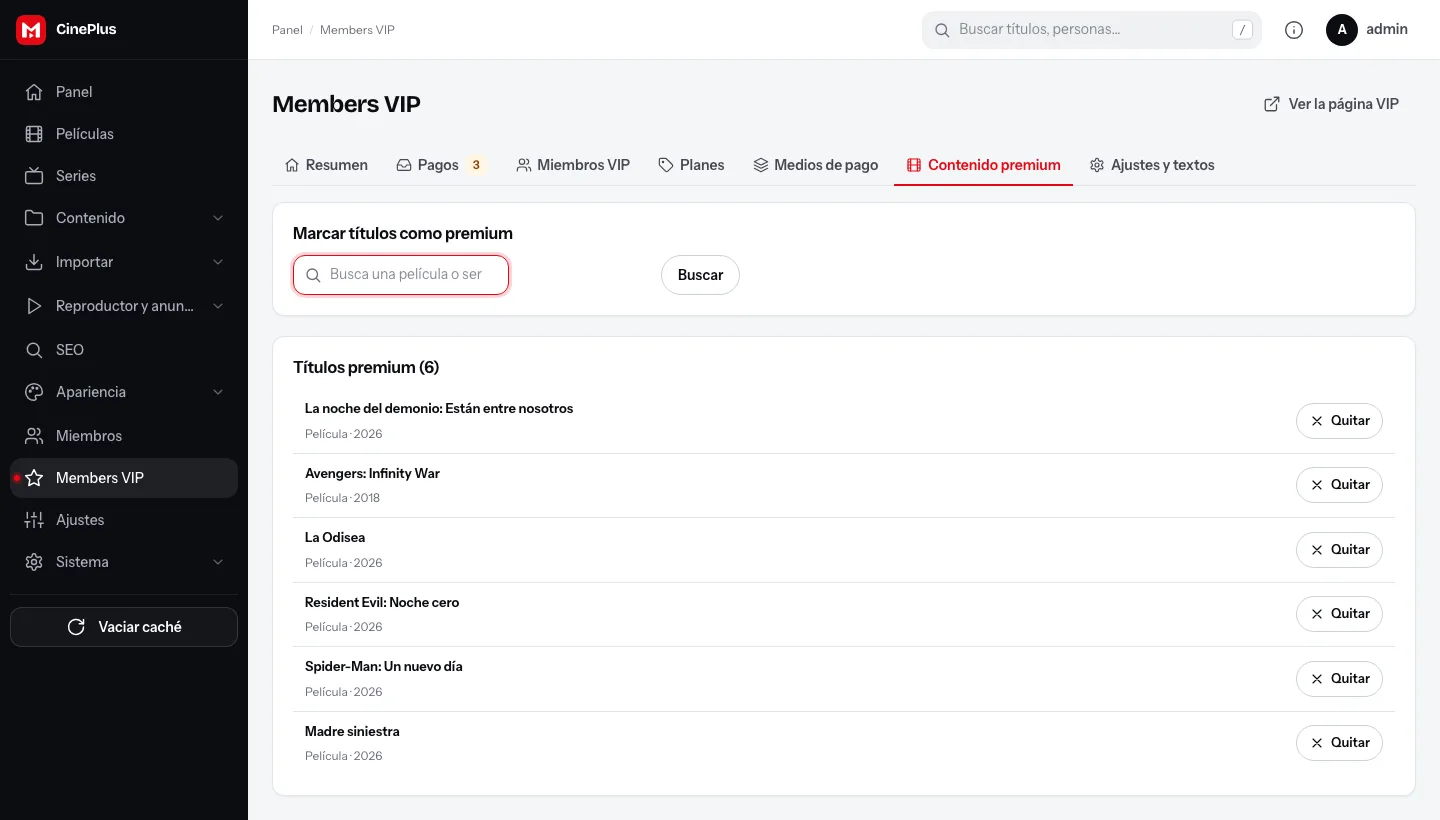
Marking a series blocks all its episodes.
6. Customize the texts (optional) #
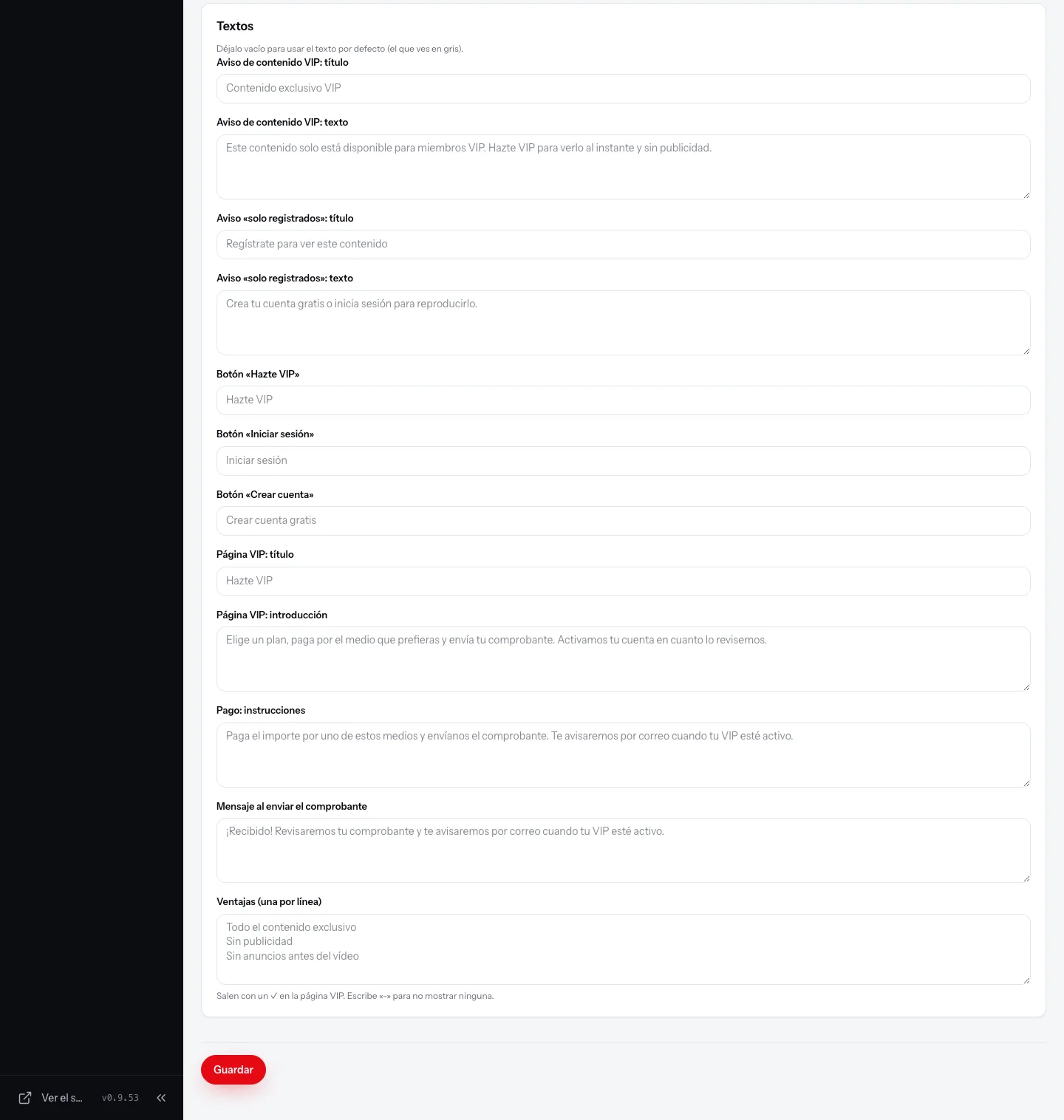
In Settings and texts → Texts you can change everything the visitor reads: the notice title and text, the buttons, the VIP page intro, the payment instructions, the message after sending the receipt and the Benefits list (one per line; each gets a ✓ on the VIP page).
Leave a field empty to use the default text, the one shown in grey. In Payments you can set the email that gets notified of every new payment (empty = the administrator's) and the maximum receipt size.
What your visitor sees #
With everything set up, this is your site for someone who is not VIP yet.
The notice on a premium title #
The page shows in full (poster, synopsis, cast, similar titles), so it keeps ranking on Google. Only the player changes: in its place there is the VIP exclusive content notice with the Go VIP and Log in buttons.


Sign-up #
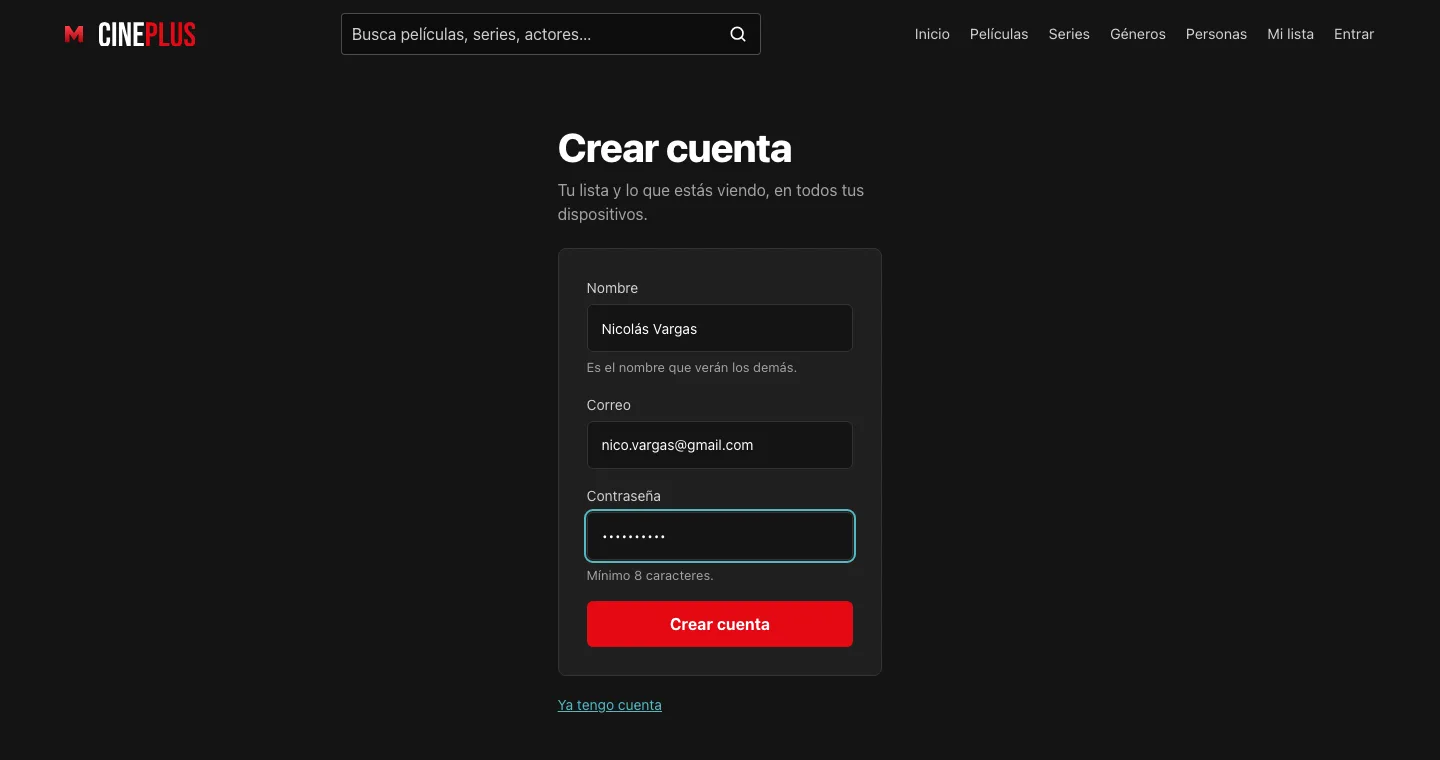
You need an account to pay. Log in takes you to the Members login and, from there, to Create account: name, email and password. After signing up the member goes straight back to where they were.
The VIP page: plans #
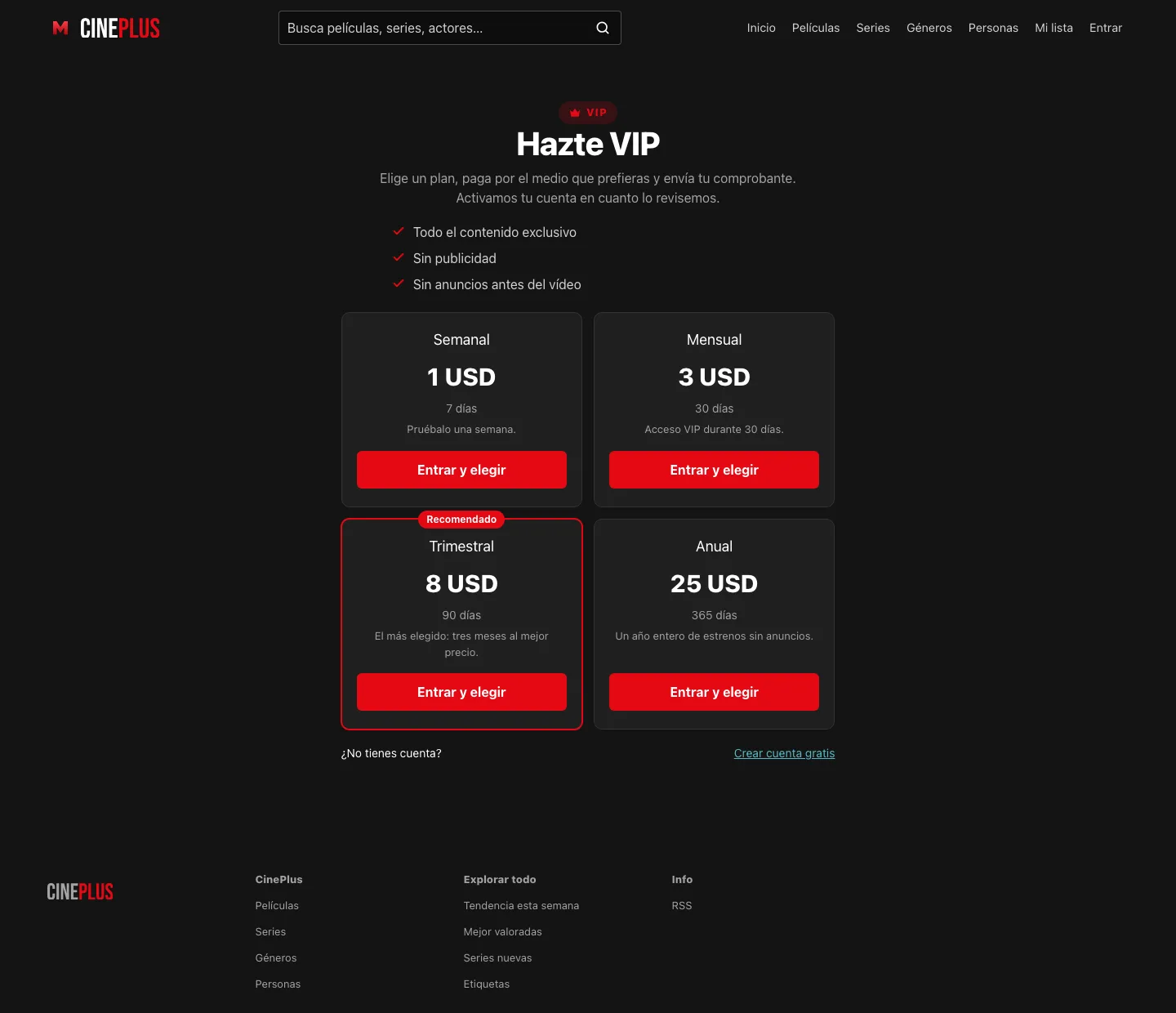
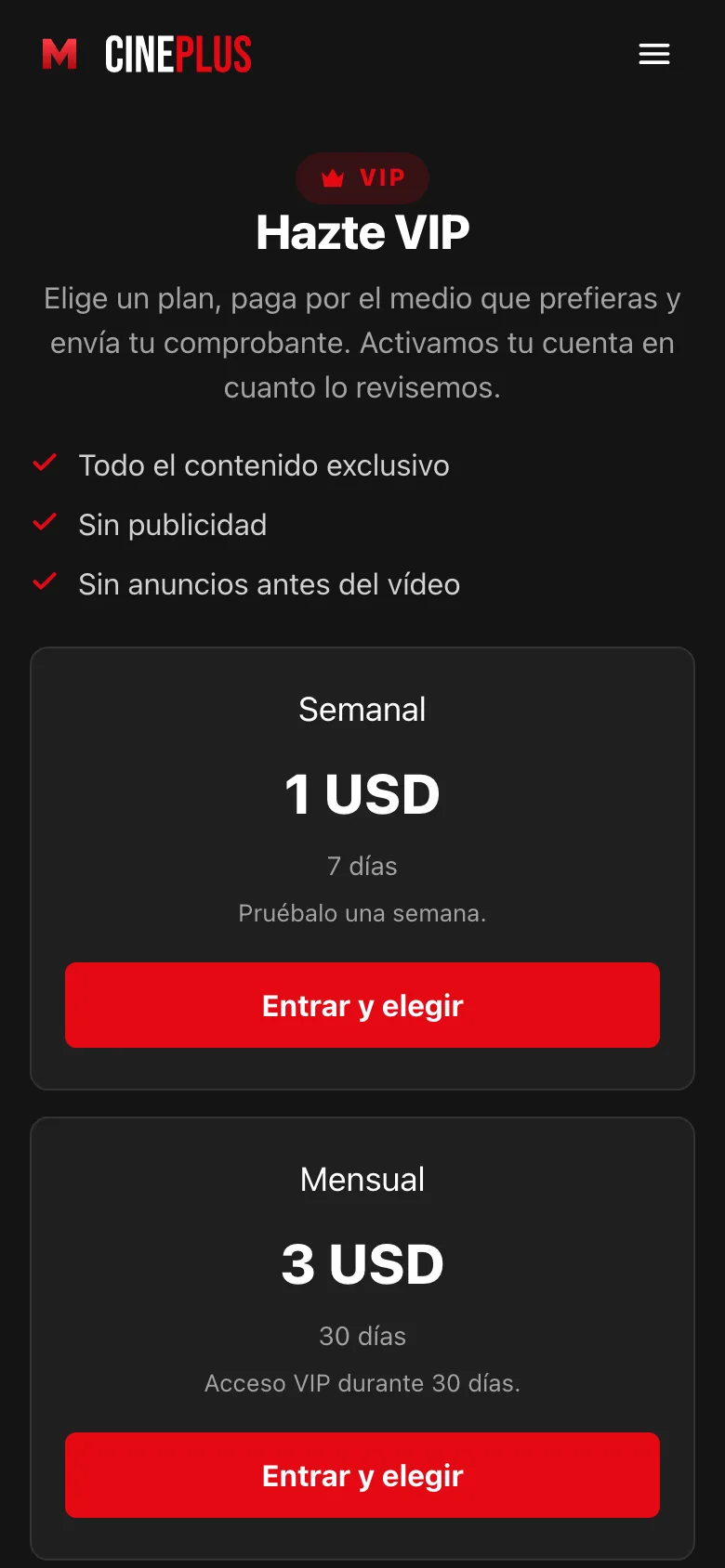
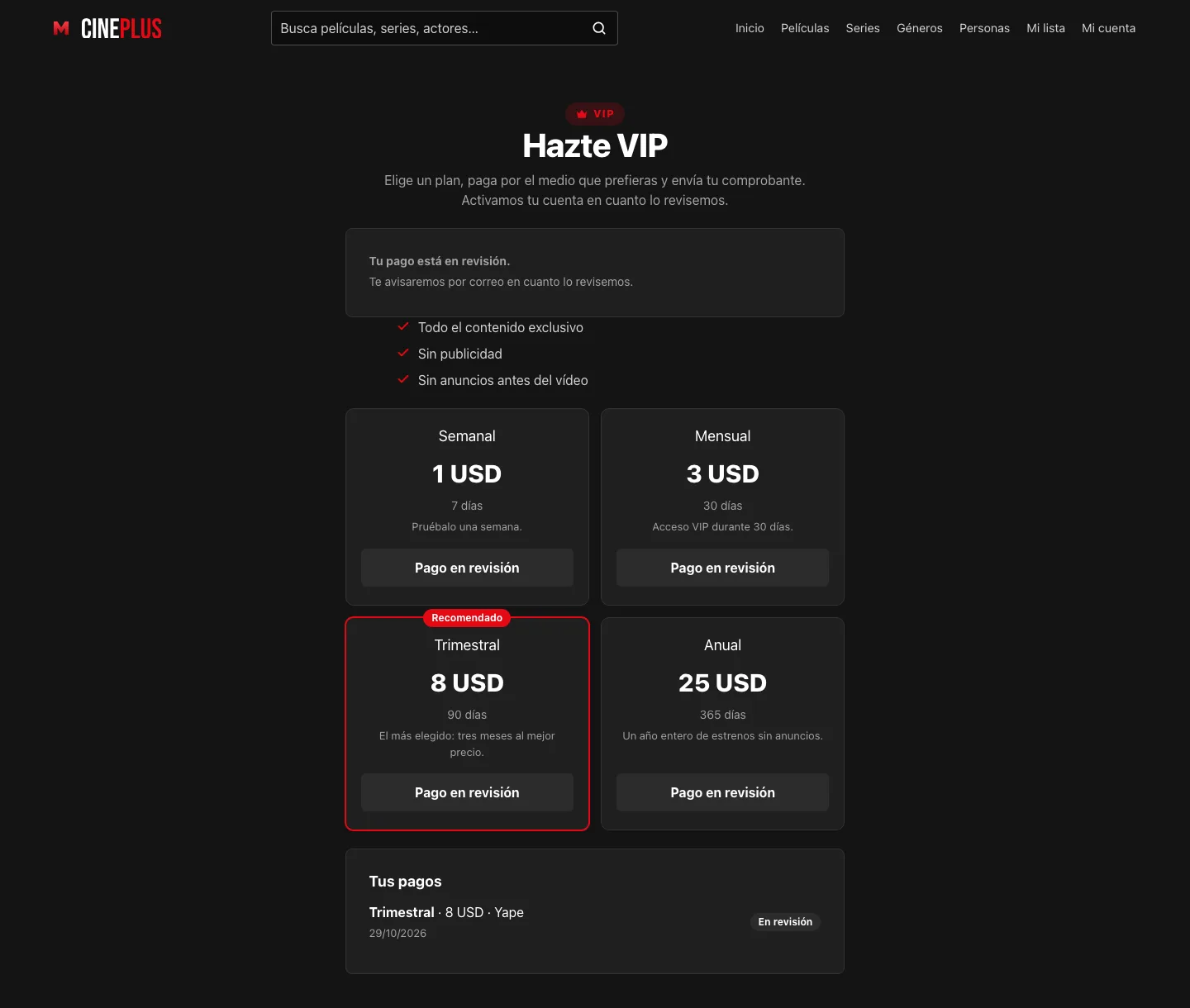
Go VIP opens /vip, with your benefits and your plans. The recommended one stands out.
Paying and sending the receipt #
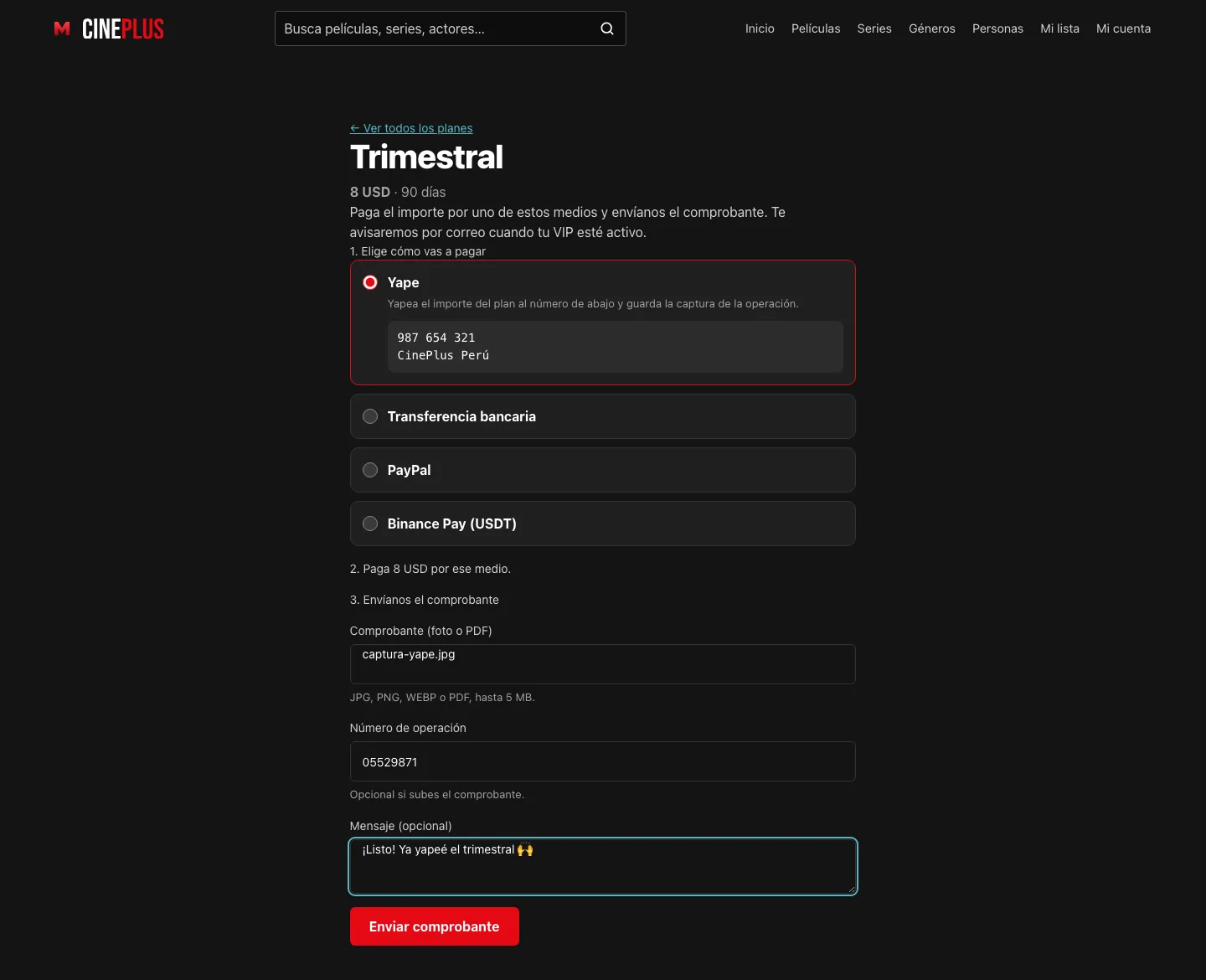
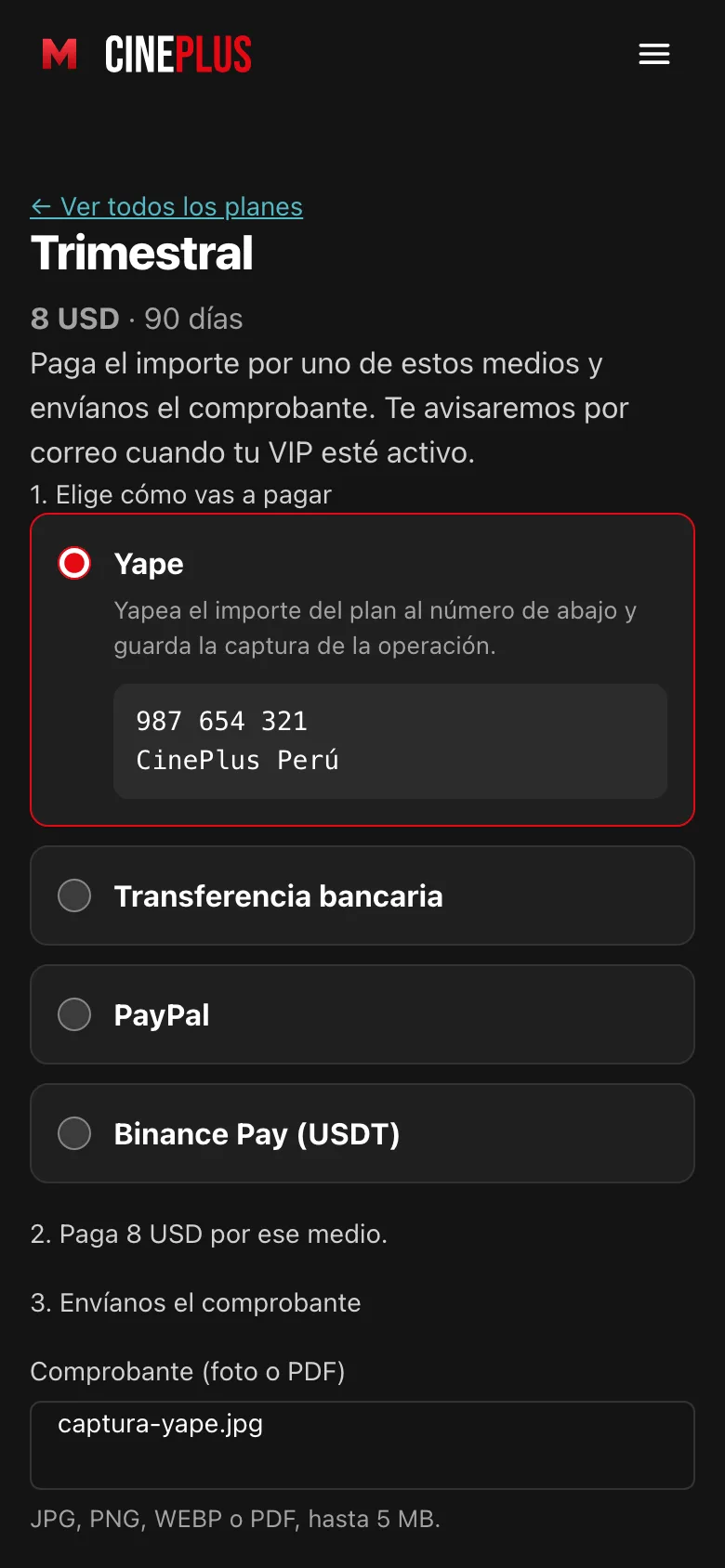
After choosing a plan, the member sees your payment methods with their details, pays outside the site and uploads a screenshot or PDF of the receipt, plus the transaction number and an optional message.
Payment under review #
While you review the payment, the member sees Your payment is under review and their payment history. You get an email: «New VIP payment from…».
VIP at last #
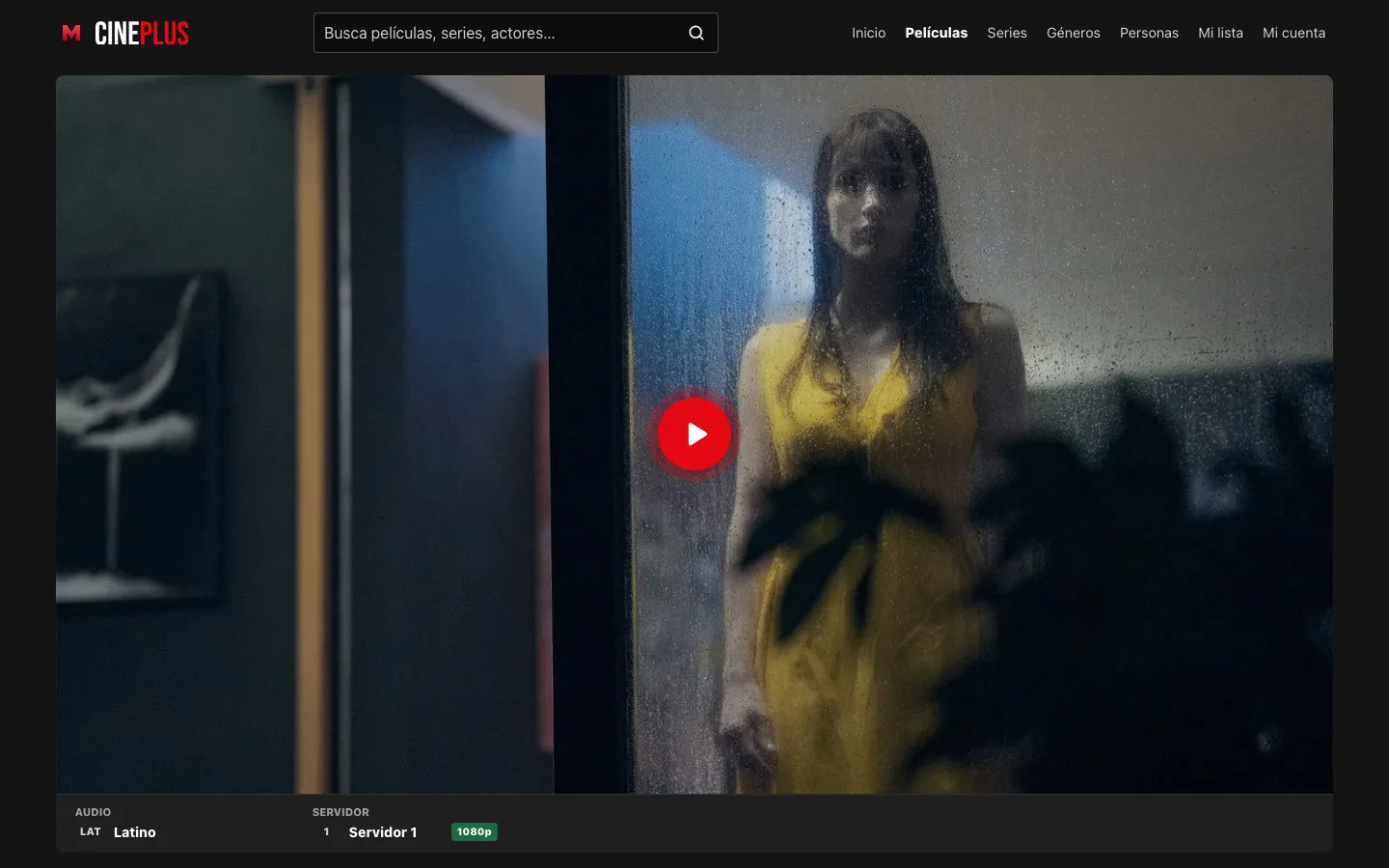
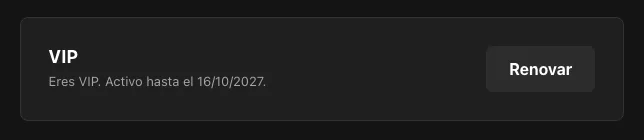
As soon as you approve it, the member gets the «Your VIP is active» email, the player shows on every premium title and the ads disappear. In My account they see when their VIP ends and a button to renew.
7. Approve payments #
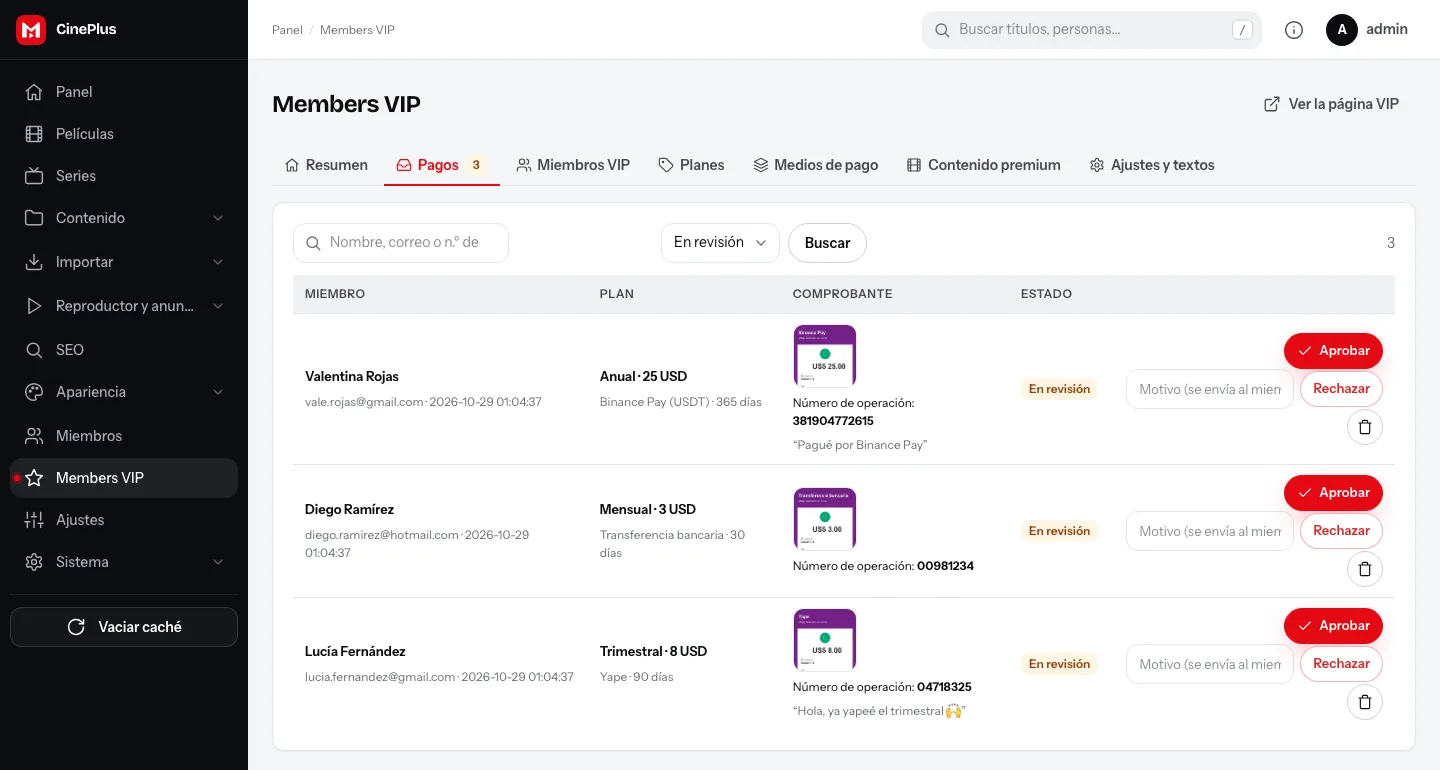
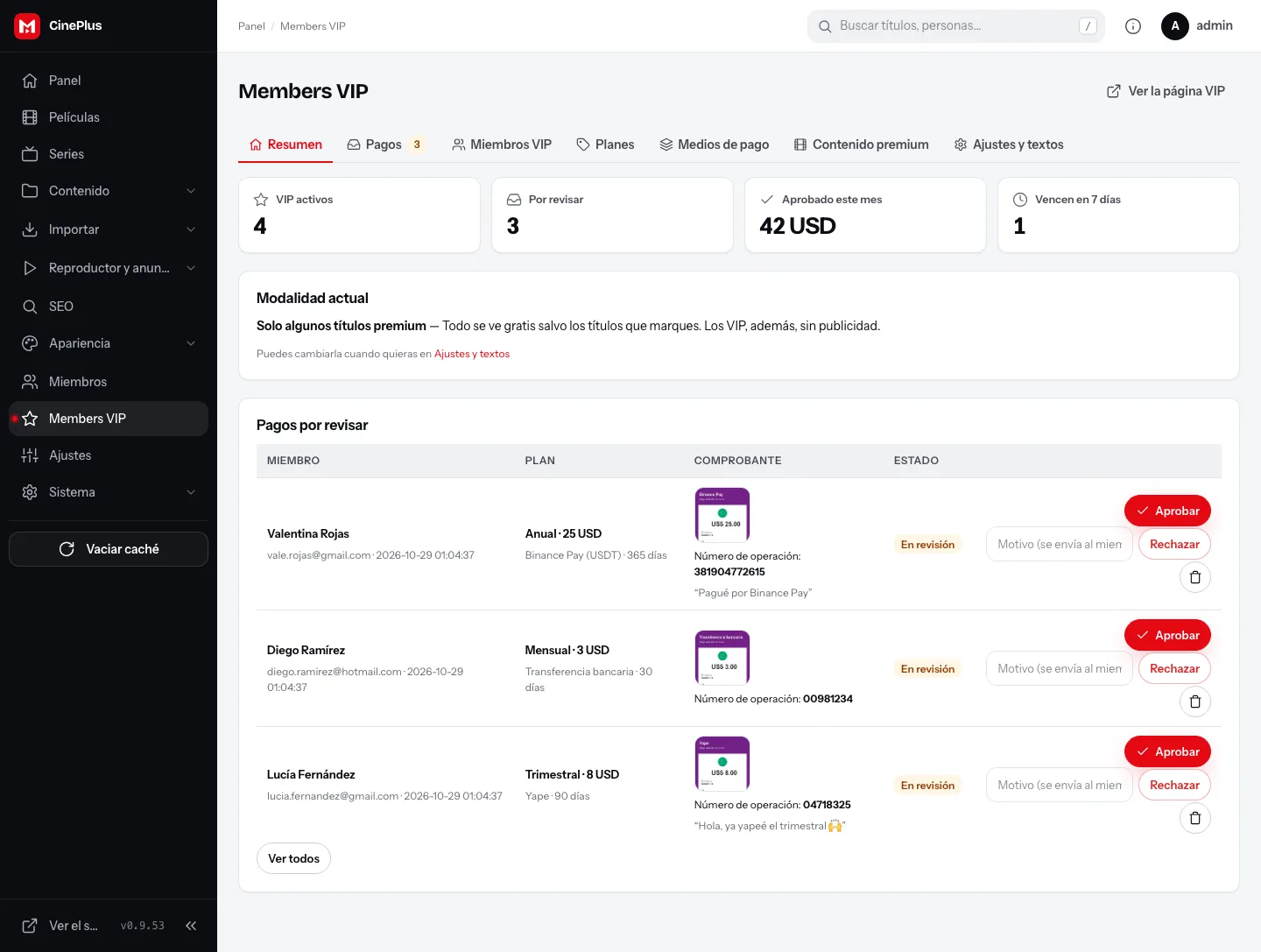
Day to day you work on the Payments tab, with a counter of payments to review. Each row shows the member, the plan, a thumbnail of the receipt (open it to see it full size), the transaction number and their message.
- Approve: turns VIP on for the plan's days. If the member was already VIP, the days are added to what they had left.
- Reject: write the reason before clicking; it is emailed to the member so they can send the payment again.
8. Overview and VIP members #
Overview shows at a glance your active VIP, payments to review, what you have collected and the VIP expiring soon.
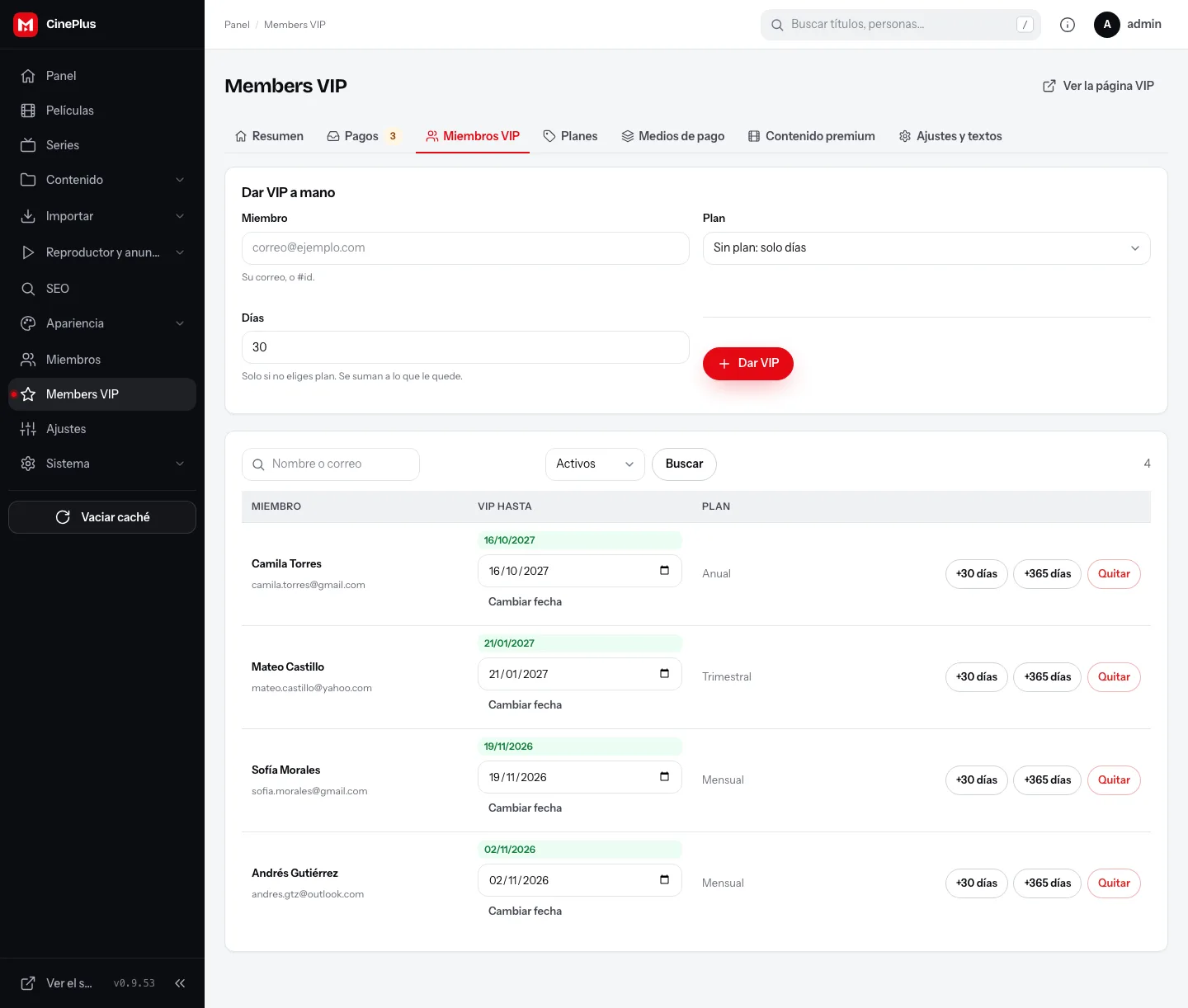
VIP members shows who is VIP and until when. From there you can:
- Grant VIP by hand to any member (by email), with a plan or any number of days. Handy for WhatsApp payments, gifts, giveaways or collaborators.
- Add +30 days or +365 days with one click, or Change date of expiry.
- Remove VIP.
When VIP expires, the member sees the notice on premium titles and the ads again. Their account, list and history stay intact, and they can renew from My account or from /vip.
Frequently asked questions #
Can I charge cards automatically? Not for now: payments are manual with a receipt. That way Yape, Nequi, bank transfers or crypto work with no fees and no gateway accounts.
Do VIP members lose access if I deactivate the plugin? While it is deactivated nothing is blocked and everything is free. Plans, payments and VIP dates are kept: when you activate it again, everything is as it was.
Does Google still index premium titles? Yes. The page, synopsis, images and structured data are the same; only the player changes.
Does it work with my theme? Yes. The notice, the VIP page and the payment screen take the colors and fonts of the active theme.